Account & Device Setup
Create your Azmyth account & company
- On your laptop or desktop, go to azmyth.io.
- Create an account using your work email.
-
You’ll be asked to either:
- Create a company – do this if you’re the first person at your organization using Azmyth, or
- Join an existing company – copy and paste in the Company UUID provided by your admin.
-
Once your company exists, claim or purchase an Azmyth on Foot subscription
– pricing is currently $100 / month per subscription.
Locating your company UUID
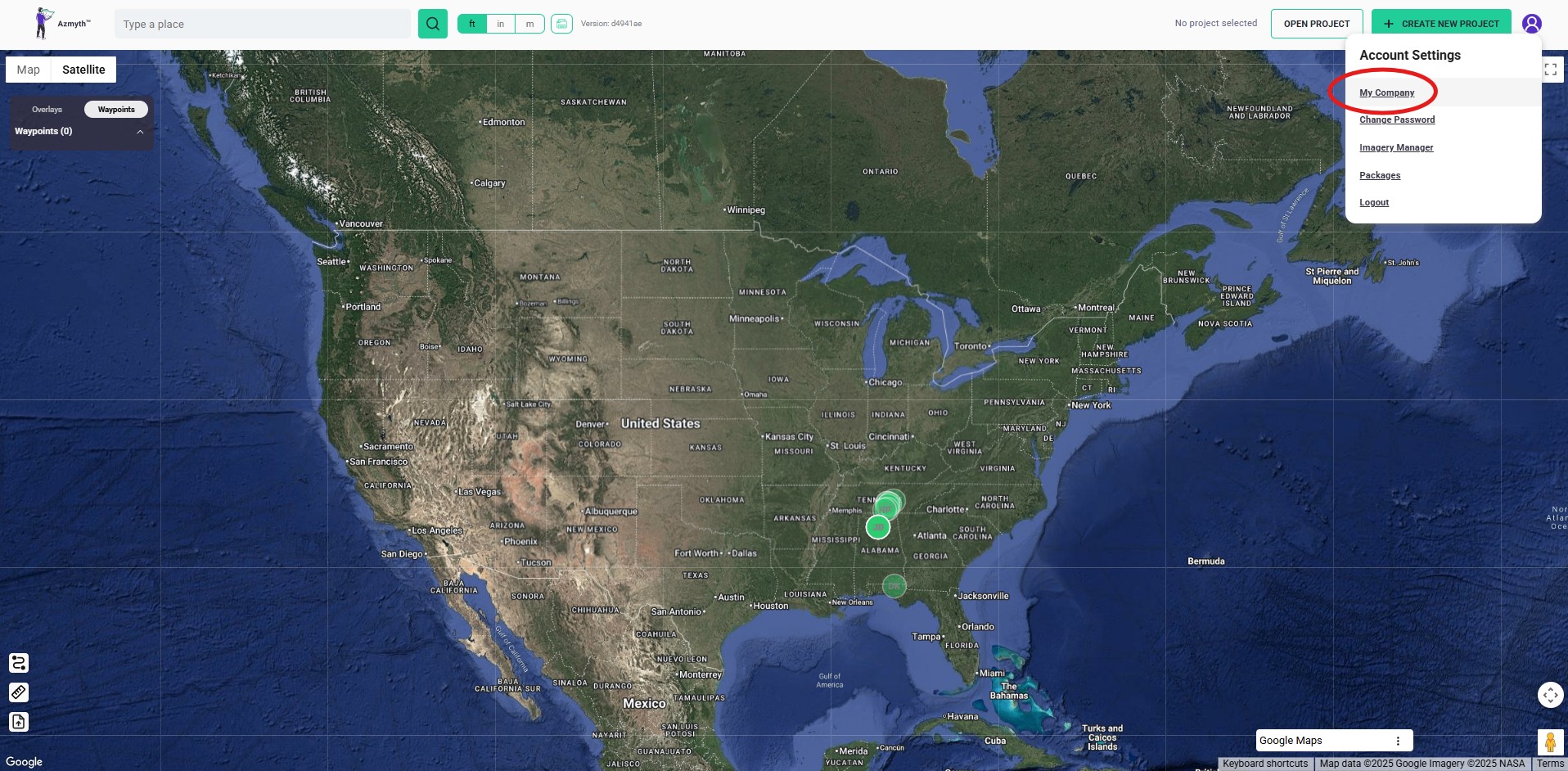
The first person to create an Azmyth account for your company will receive a unique company UUID. To find that UUID—for yourself or for anyone else on your team—follow these steps: 1. Log in to the Azmyth web platform on your desktop. 2. Click your user icon in the top-right corner. 3. Select “My Company” - Locate your company’s UUID and copy it as needed.
Mobile device setup
- Install the Azmyth on Foot app on your iOS mobile device.
- After downloading the app, log in using the credentials you created on your desktop account.
Connect RTK GPS and NTRIP
Azmyth on Foot is designed to work with RTK GPS receivers (e.g. Emlid RX) so you can get sub-inch accuracy.
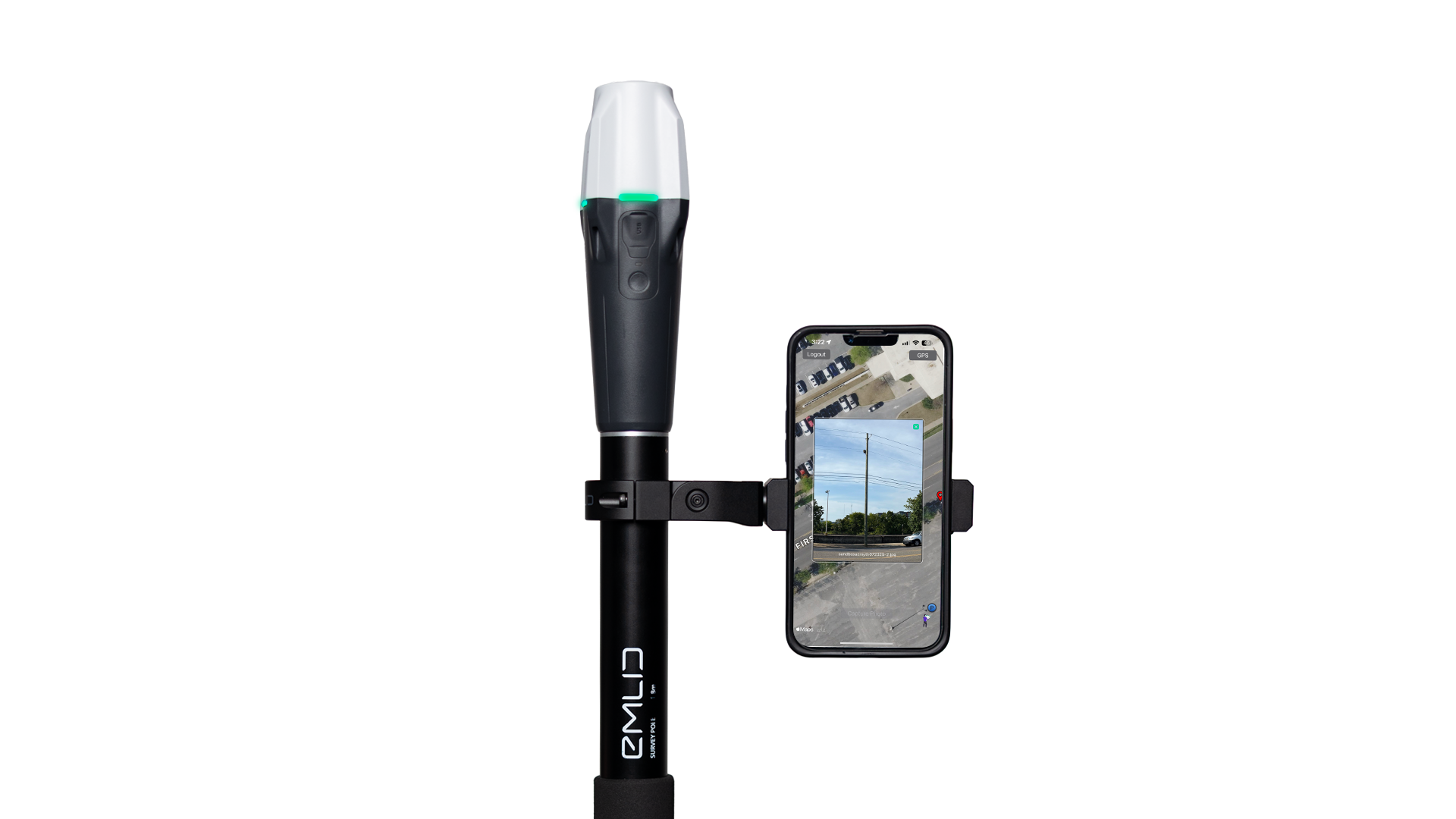
- Power on your RTK GPS receiver and make sure it’s nearby.
- In Azmyth on Foot, open the GPS screen.
-
Enter your NTRIP credentials (caster URL, port, username, password).
-
Tap on the Mount Point field:
- If mount points appear, select the appropriate one and continue.
- If no mount points appear, there is almost always a typo in the credentials. Double-check each field carefully and try again.
-
After mount point selection, connect to your Emlid RX via Bluetooth from within the app.
No mount points listed?
99% of the time this means the NTRIP credentials are incorrect.
Double-check:
- Host/caster URL
- Port
- Username
- Password
Confirm RTK corrections
Before you start collecting data, confirm that RTK corrections are flowing.
- Go back to the main screen in Azmyth on Foot.
- Look for the status indicator:
- You should see “Receiving Corrections” once the GPS and NTRIP are connected.
- Step outside with a clear sky view. Within a short time, you should see the reported accuracy drop to around ±0.6 in.
This is your sanity check that everything is set up correctly.
Quick field test
If you don’t see “Receiving Corrections” or the accuracy doesn’t improve: - Confirm Bluetooth is connected to the correct RTK receiver. - Re-check NTRIP credentials and mount point. - Make sure you’re not indoors or under heavy tree canopy.